The Social Appearance tab allows you to dictate exactly how your content renders when shared across Facebook, X (formerly Twitter), LinkedIn, and Discord. You can ensure your brand stays consistent, whether it's through automated syncing or custom manual overrides.
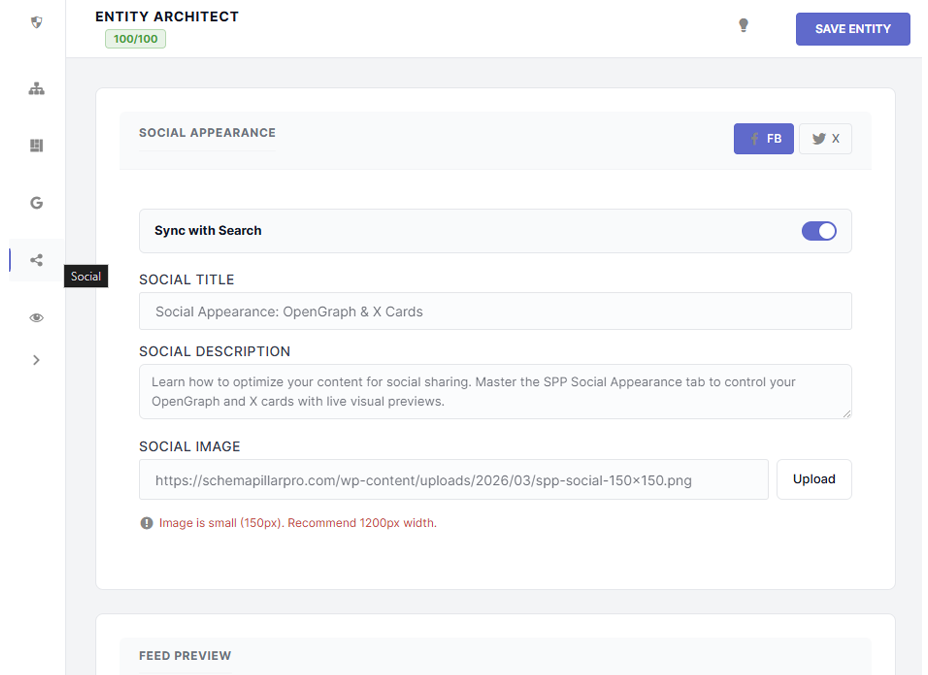
By default, SPP operates on a Sync with Search protocol. This ensures that the Meta Title and Meta Description you wrote in the SEO Identity tab are automatically applied to your social cards.
If you want to use a more "click-baity" headline for Facebook or a shorter description for X, simply uncheck the Sync with Search toggle. This unlocks the social fields, allowing you to craft platform-specific messaging.
Your social image is the most critical element for engagement. SPP allows you to upload a custom graphic (OpenGraph image) specifically for sharing.
Social platforms prefer images with a width of 1200px. If you upload an image smaller than this, the SPP Drawer will trigger a live warning alert, notifying you that your image may appear blurry or be cropped into a smaller thumbnail on certain feeds.
Eliminate the guesswork. At the bottom of the Social tab is a Preview Canvas that generates a real-time simulation of your shareable card.
Switch between the FB and X buttons to see how the layout, image aspect ratio, and typography change across different ecosystems.
The preview canvas will automatically resolve variables like %%title%% and %%sitename%%, showing you exactly what your audience will see in their feeds.